Unity setup with VScode
Less than 1 minute
Unity setup with VScode
Install
- go to Unity, download
Unity hub - go to VScode, download
VScode - go to dotnet,download
.netframework - if using macOS, go to mono, download
Monoframework
Setup
- open
Unity hub, and installUnityLTS Version - open vscode install the Unity for Visual Studio Code extension from the Visual Studio Marketplace.
- In vscode, open extension
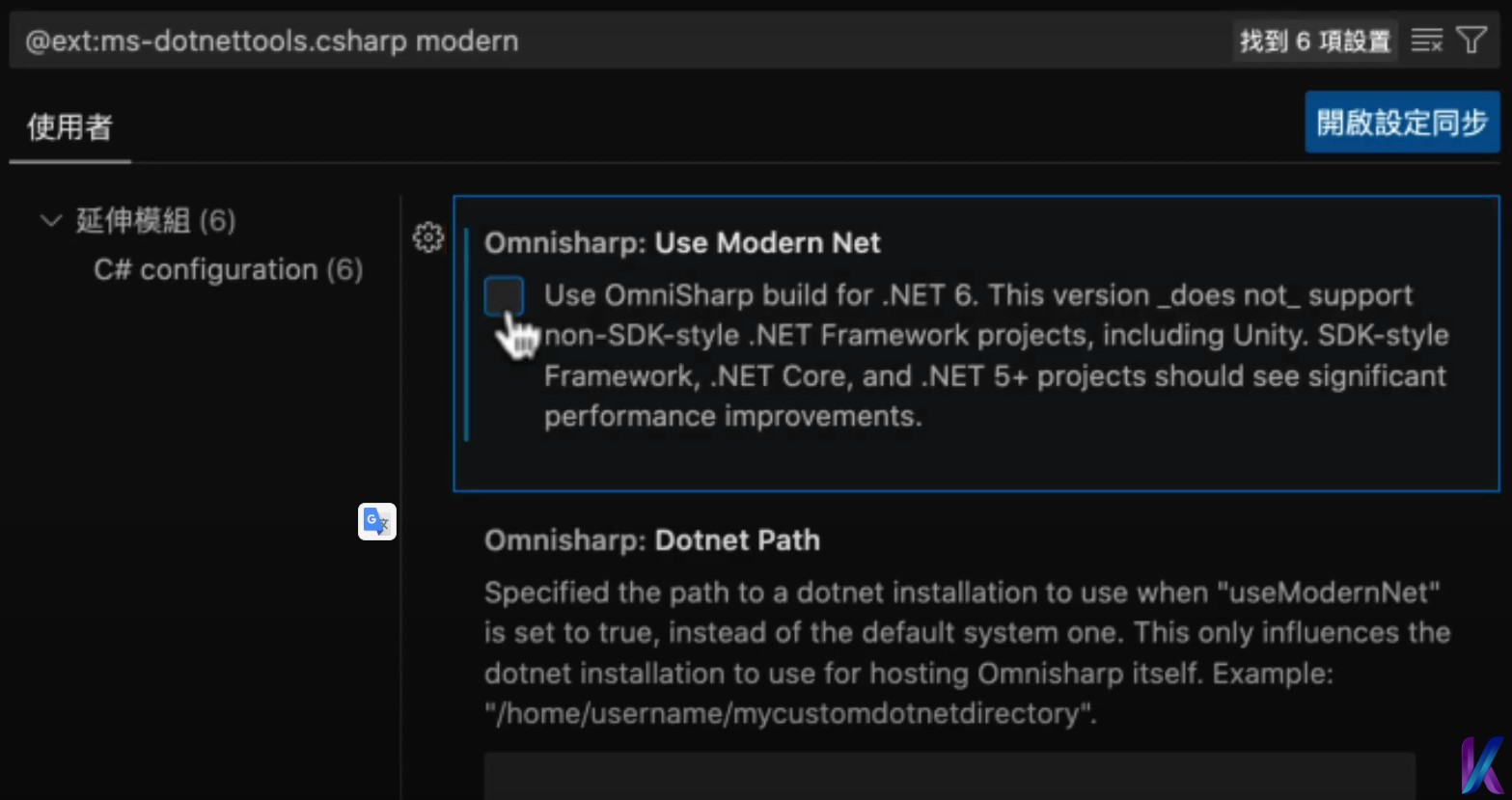
c#setting, searchmodern, and disableUse Modern Net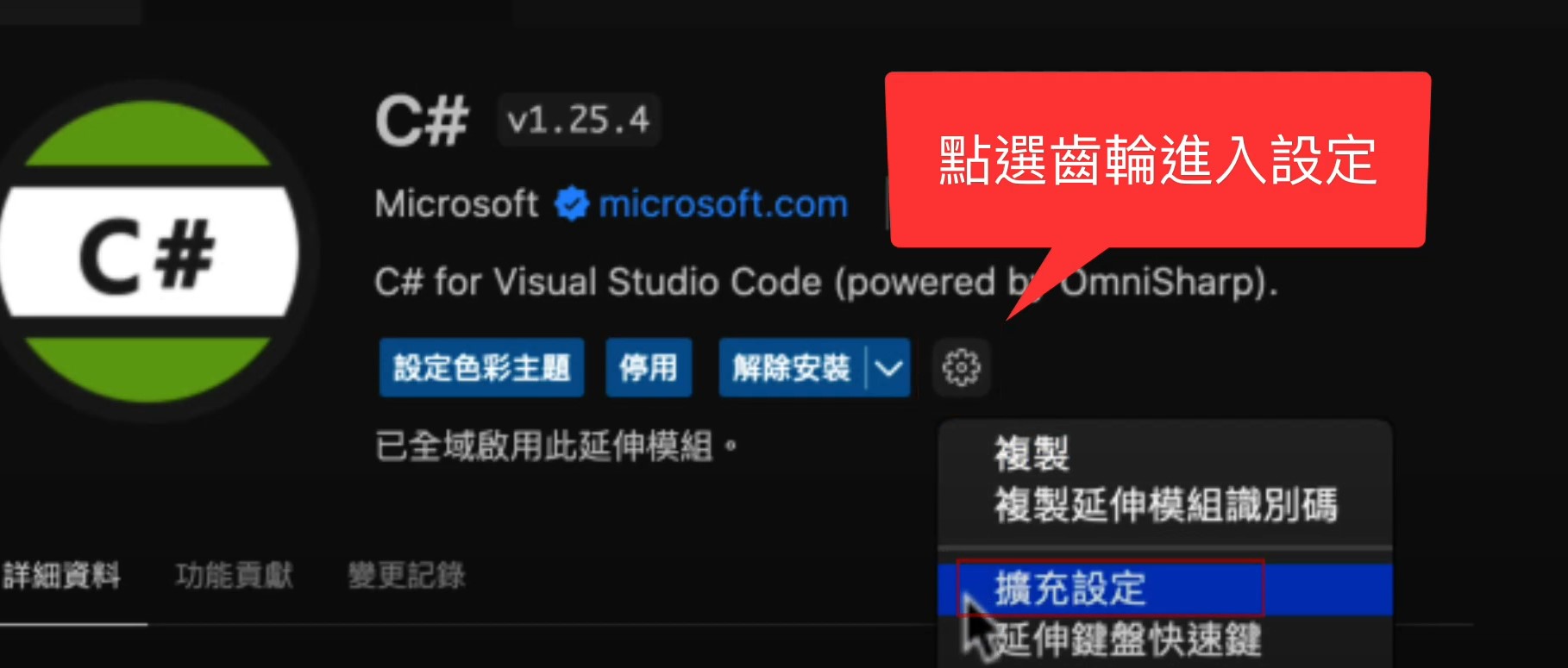
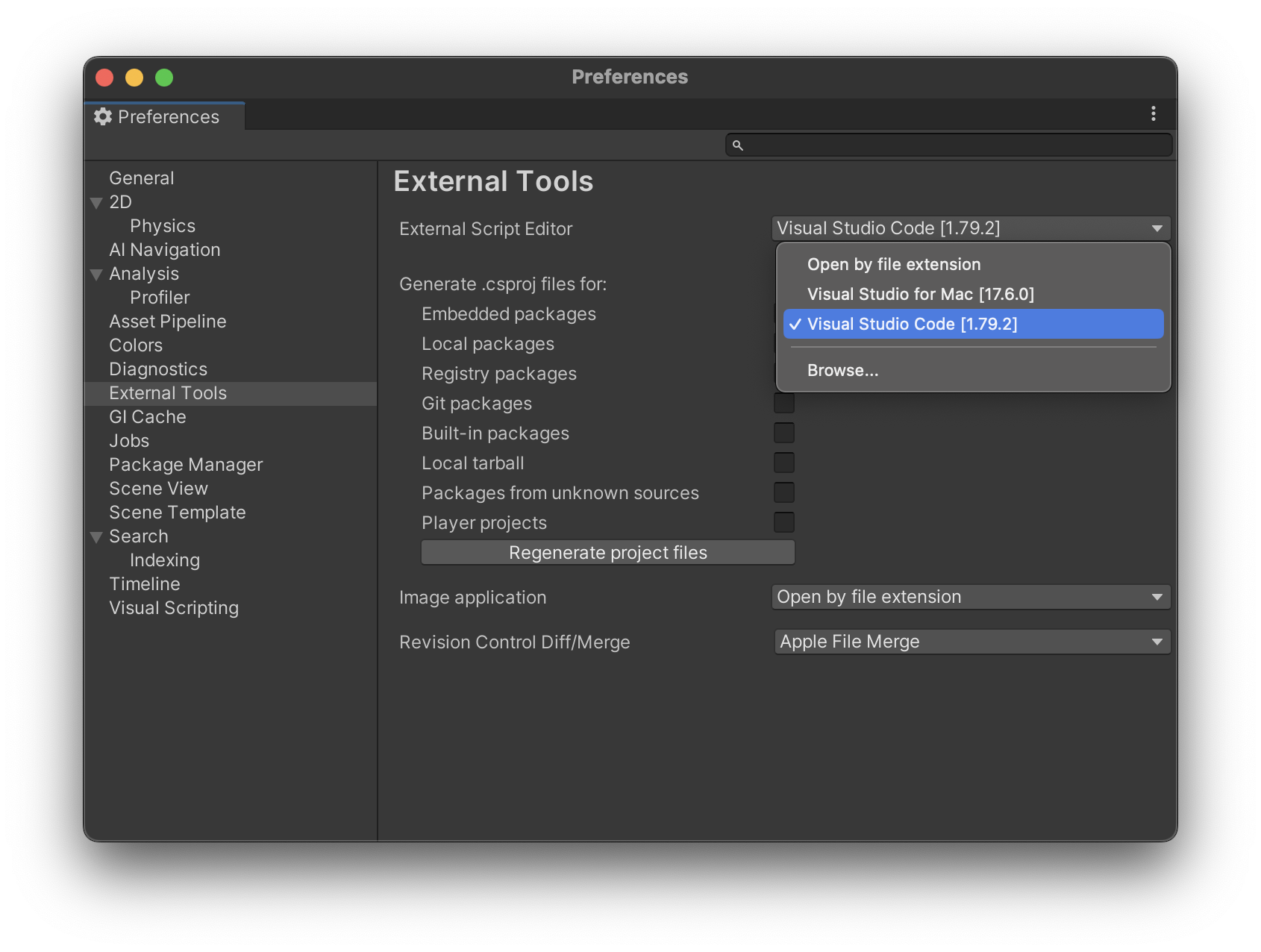
- Open up Unity Preferences, External Tools, then select Visual Studio Code as External Script Editor.